Live Activities and Live Updates
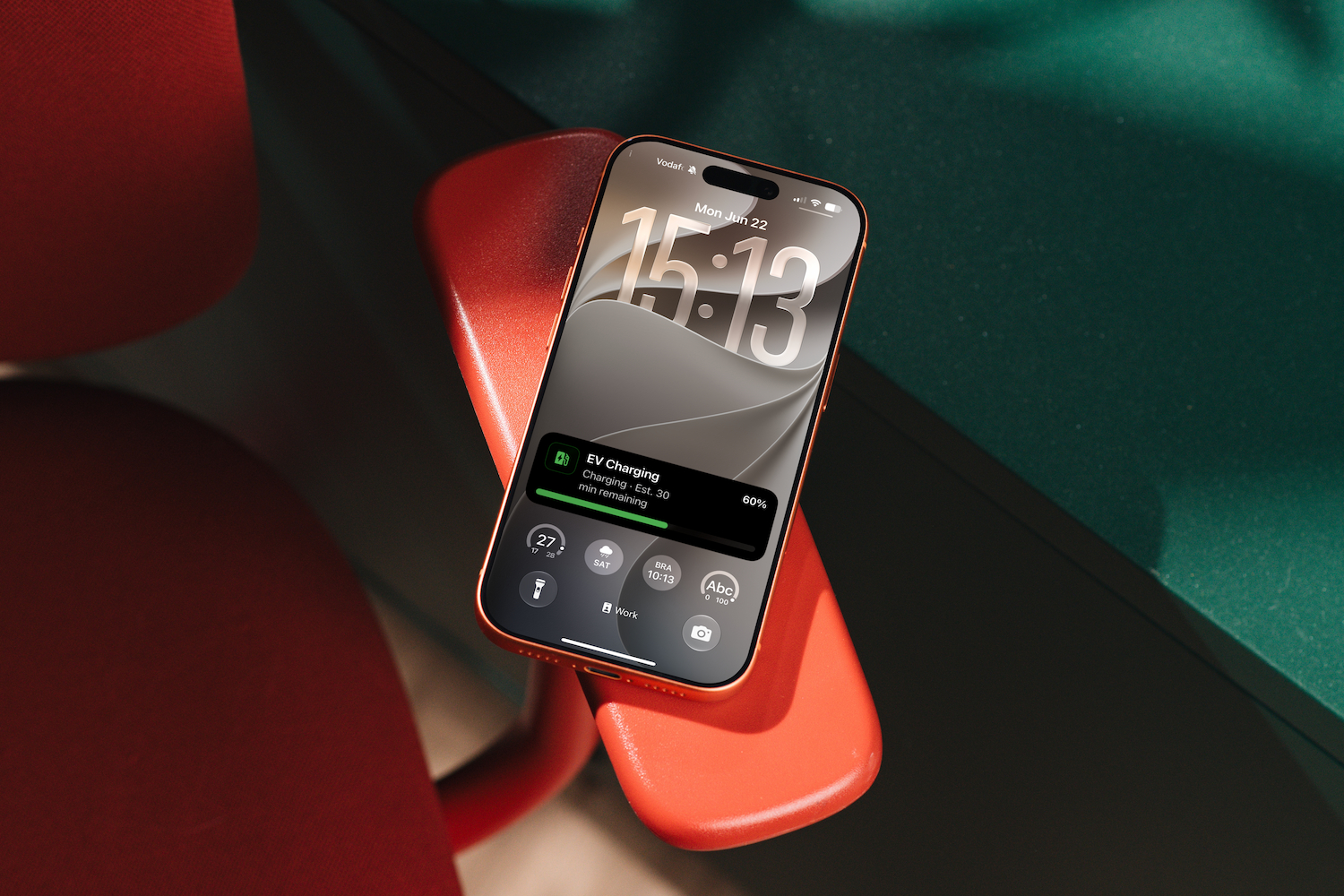
Live Activities (iOS) and Live Updates (Android) keep Home Assistant state visible on your phone's Lock Screen, refreshed by the push updates your automations send, so you can glance at it without unlocking your device. Use them for anything time-sensitive you want to follow at a glance, such as a washing machine countdown, EV charging progress, a package delivery, or a security alarm state.
 On iOS, the activity appears on the Lock Screen and in the Dynamic Island.
 On Android, it stays pinned to the notification shade, the Lock Screen, and the always-on display, and shows as a chip in the status bar.
- Live Activities are currently in Labs and available only in the TestFlight version of the app.
- 17.2 or later on iPhone and iPad, with macOS mirroring what is in your iPhone.
- Home Assistant Core 2026.7.0 or later.
- Live Activity requires a hand shake between app and Home Assistant itself to sync tokens, if your phone connectivity is unstable or you are not at home and don't have a remote connection configured, this token had shake will not occur and the live activity itself will not be received/updated.
Starting
To start a Live Activity, send a notification with live_update: true and a tag in its data payload. The companion app intercepts the push and shows a Live Activity (iOS) or Live Update (Android) instead of a standard notification banner.
Replace notify.mobile_app_<your_device_id_here> with your device's notify action. The device name was set when you connected the app to Home Assistant, and there is one per server. You can find it in the companion app under Settings → Companion app → Server & devices. To try a payload quickly, paste it into Developer tools → Actions before building a full automation.
Start with a minimal payload:
action:
  - action: notify.mobile_app_<your_device_id_here>
    data:
      title: "Washing Machine"
      message: "Cycle started"
      data:
        tag: washer_cycle
        live_update: true
The tag uniquely identifies the activity. Sending another notification with the same tag updates the existing activity in place rather than creating a new one.
On Android, title must be provided. Without it, the notification posts as a standard banner.
Add a progress bar and timer
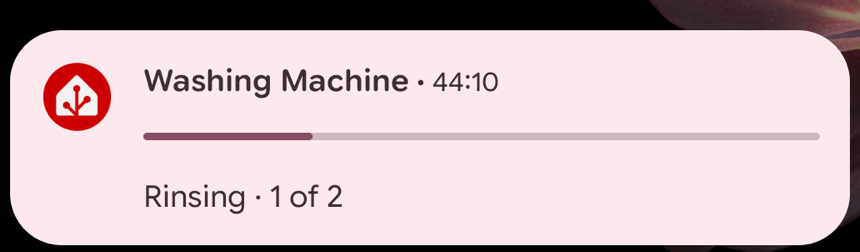
Include progress and progress_max to show a progress bar, and chronometer with when to show a live timer:
action:
  - action: notify.mobile_app_<your_device_id_here>
    data:
      title: "Washing Machine"
      message: "Rinsing · 1 of 2"
      data:
        tag: washer_cycle
        live_update: true
        progress: 900
        progress_max: 3600
        chronometer: true
        when: 2700
        when_relative: true
        notification_icon: mdi:washing-machine
        notification_icon_color: "#2196F3"
        color: "#2196F3"
Updating
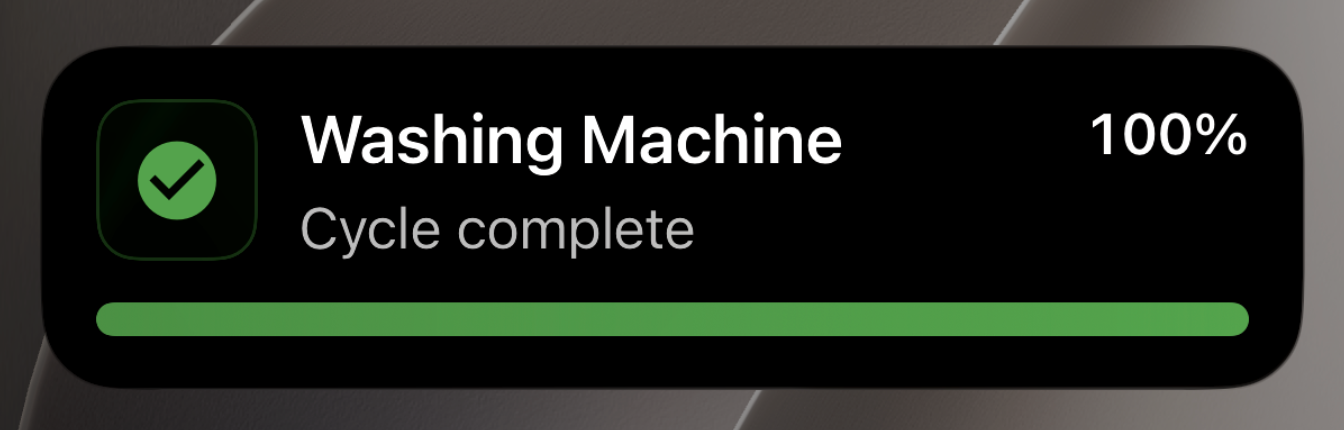
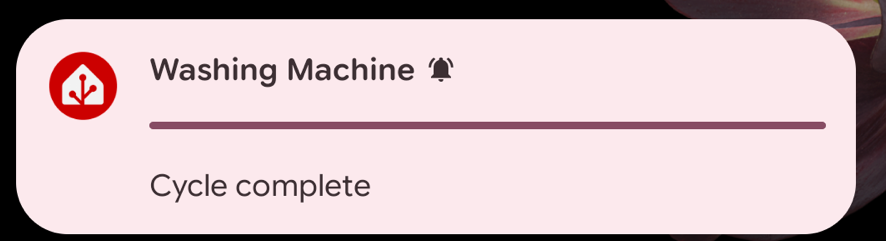
Send the same payload again with the same tag. The display updates silently, with no banner and no sound.
Live Activities use the highest push notification delivery priority (10), except updates sent with silent: true, which use a lower priority (5) that iOS may delay or batch to save power. Avoid automations that update every second or react to a frequently changing entity state. If iOS considers the update frequency excessive, it may throttle push delivery. This does not apply to local push notifications.
action:
  - action: notify.mobile_app_<your_device_id_here>
    data:
      title: "Washing Machine"
      message: "Cycle complete"
      data:
        tag: washer_cycle
        live_update: true
        progress: 3600
        progress_max: 3600
        notification_icon: mdi:washing-machine
        notification_icon_color: "#4CAF50"
        color: "#4CAF50"
iOS
Android
Update frequency
Each update is a push notification, and iOS both limits how often it renders updates and enforces a delivery budget. Drive updates from discrete state changes or a coarse interval, not from every tick of a continuously-changing value, or iOS will throttle (and eventually drop) your updates. For elapsed or remaining time, use the built-in chronometer timer: it counts on the device, so you don't push a new value every second.
✅ Fine
Trigger on meaningful state changes
A washing machine moving through its phases produces only a handful of updates across a whole cycle:
triggers:
  - trigger: state
    entity_id: sensor.washing_machine_operation_state
actions:
  - action: notify.mobile_app_<your_device_id_here>
    data:
      title: "Washing Machine"
      message: "{{ states('sensor.washing_machine_operation_state') }}"
      data:
        tag: washer_cycle
        live_update: true
Use a chronometer for countdowns (no repeated pushes)
Started once, the timer ticks on-device with no further pushes:
actions:
  - action: notify.mobile_app_<your_device_id_here>
    data:
      title: "Laundry"
      message: "Drying"
      data:
        tag: dryer
        live_update: true
        chronometer: true
        when: 3600
        when_relative: true
Throttle a continuous value to a sensible step
Here, EV charge updates every 5% instead of on every reading:
triggers:
  - trigger: state
    entity_id: sensor.ev_battery_level
conditions:
  - condition: template
    value_template: "{{ trigger.to_state.state | int(0) % 5 == 0 }}"
actions:
  - action: notify.mobile_app_<your_device_id_here>
    data:
      title: "EV Charging"
      message: "Charging · {{ states('sensor.ev_battery_level') }}%"
      data:
        tag: ev-charging
        live_update: true
        progress: "{{ states('sensor.ev_battery_level') }}"
        progress_max: 100
You can also throttle at the automation level. Set the automation's mode to restart and put a delay before the update: each new trigger cancels the wait and starts over, so a burst of changes collapses into a single update carrying the latest state, which is all a Live Activity needs. (For a simpler fixed cooldown instead, use mode: single with the delay at the end: it updates immediately, then ignores new triggers until the wait passes.)
mode: restart
triggers:
  - trigger: state
    entity_id: sensor.frequently_changing_value
actions:
  - delay: "00:00:30" # a new trigger restarts this; only the latest update is sent
  - action: notify.mobile_app_<your_device_id_here>
    data:
      data:
        tag: my_activity
        live_update: true
        message: "{{ states('sensor.frequently_changing_value') }}"
❌ Avoid
A fixed sub-minute timer
It floods the activity and gets throttled. Use chronometer for a ticking clock instead of pushing the time every second:
# Don't: fires every second
triggers:
  - trigger: time_pattern
    seconds: "/1"
Reacting to a fast-changing sensor
Triggering on every change of a fast sensor (power draw, temperature, signal strength) sends an update per reading, often several a second:
# Don't: sensor.house_power changes every few seconds
triggers:
  - trigger: state
    entity_id: sensor.house_power
Fix this by triggering on threshold crossings (numeric_state with above/below) or by throttling as in the EV example above.
Ending
Send the clear_notification command with the same tag to end the Live Activity / Live Update and dismiss any delivered notification with that identifier, on both iOS and Android. This is the same command used to clear a notification.
action:
  - action: notify.mobile_app_<your_device_id_here>
    data:
      message: "clear_notification"
      data:
        tag: washer_cycle
Payload fields
title and message are standard notification fields set at the top level of data (data.title and data.message). All other fields go inside the nested data: block (data.data).
A platform badge ( / ) marks a field, or a behavior, specific to one platform. Everything else works on both.
| Field | Type | Description |
|---|---|---|
tag | string | Required. Unique identifier for the activity. Use letters, numbers, hyphens, and underscores only, up to 64 characters. Reusing the same tag updates the existing activity instead of creating a new one. |
live_update | boolean | Set to true to start or update a Live Activity / Live Update. |
title | string | Static header text. Set when the activity starts; updates cannot change it. |
message | string | Main body text shown on the Lock Screen and always-on display. |
critical_text | string | Short supplementary text. Shown in the status bar chip, and replaced by the timer when chronometer is set. |
progress | integer | Current progress value, such as seconds elapsed. |
progress_max | integer | Maximum progress value. A progress bar appears when both progress and progress_max are set. |
chronometer | boolean | Show a live count-up or countdown timer. Requires when. Replaces critical_text in the status bar chip. |
when | number | Timer reference point. A Unix timestamp, or seconds from now when when_relative is true. |
when_relative | boolean | If true, treat when as seconds from now rather than a Unix timestamp. |
notification_icon | string | A Material Design Icon slug, such as mdi:washing-machine. |
notification_icon_color | string | Hex color for the icon, such as #2196F3. |
color | string | Hex color for the icon, such as #2196F3. |
silent | boolean | If true, an update arrives without a sound and at a lower, power-conserving priority that iOS may delay or batch, so use it for non-urgent updates. Has no effect when starting the activity. |
url | string | Where to go when the activity is tapped. A relative Home Assistant path such as /lovelace/0 opens that view in the app; a full https:// URL opens in the browser. The tap always opens the server that started the activity. url applies to the update it is sent with, so include it on each update where you want a specific destination. See Opening a page on tap. |
background_color | string | Lock Screen background color, such as #101820. Defaults to black. See Custom colors. |
text_color | string | Lock Screen text color. Defaults to a color that contrasts the background. See Custom colors. |
progress_bar_color | string | Progress bar color, same format as notification_icon_color. Falls back to notification_icon_color when omitted. |
alert_once | boolean | If true, the notification plays sound or vibration only once. |
sticky | boolean | If true, the notification stays when the user taps it. |
Example scenarios
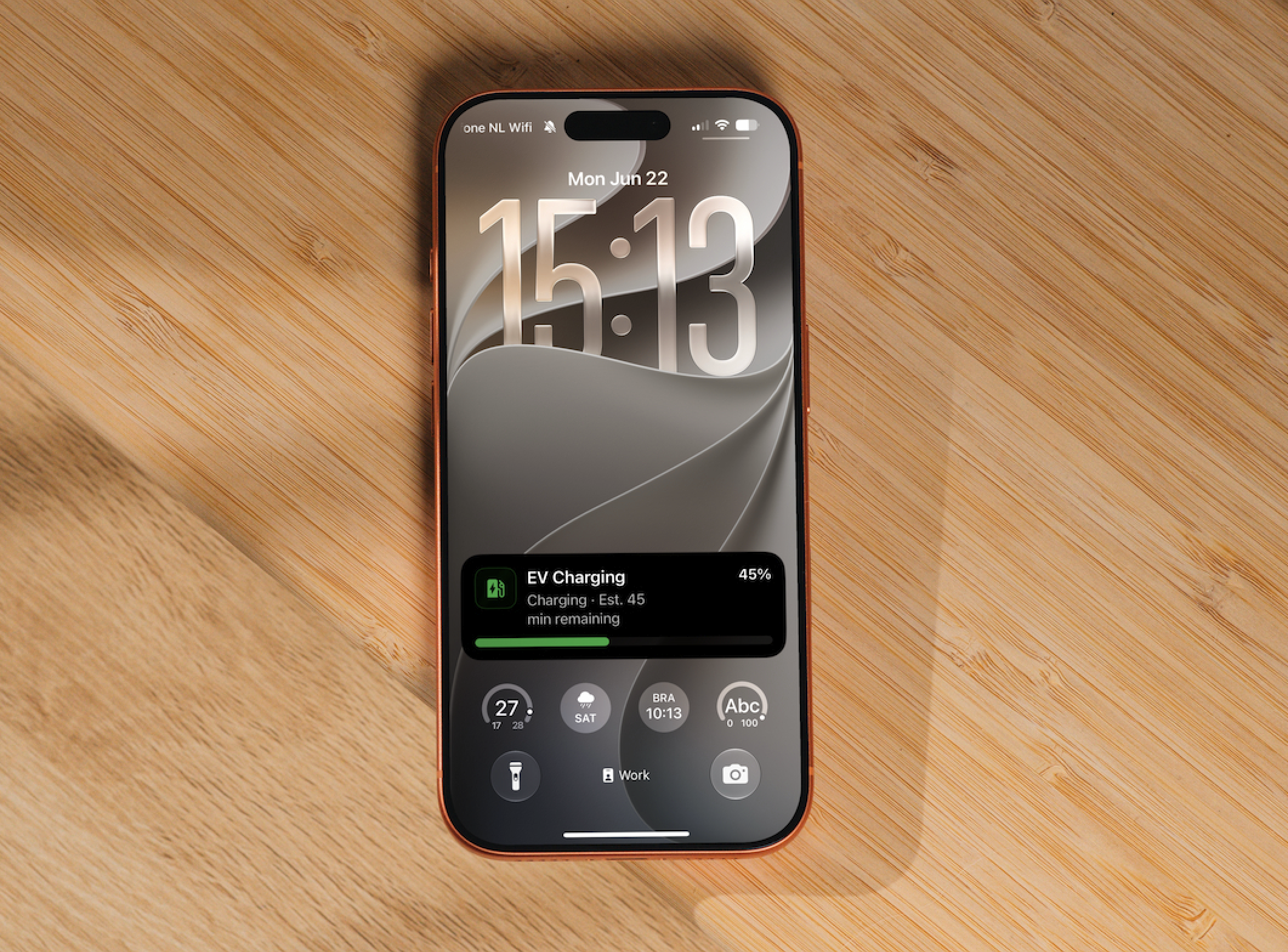
EV charging
data:
  title: "EV Charging"
  message: "Charging · Est. 45 min remaining"
  data:
    tag: ev-charging
    live_update: true
    critical_text: "45%"
    progress: 45
    progress_max: 100
    notification_icon: mdi:ev-station
    notification_icon_color: "#4CAF50"
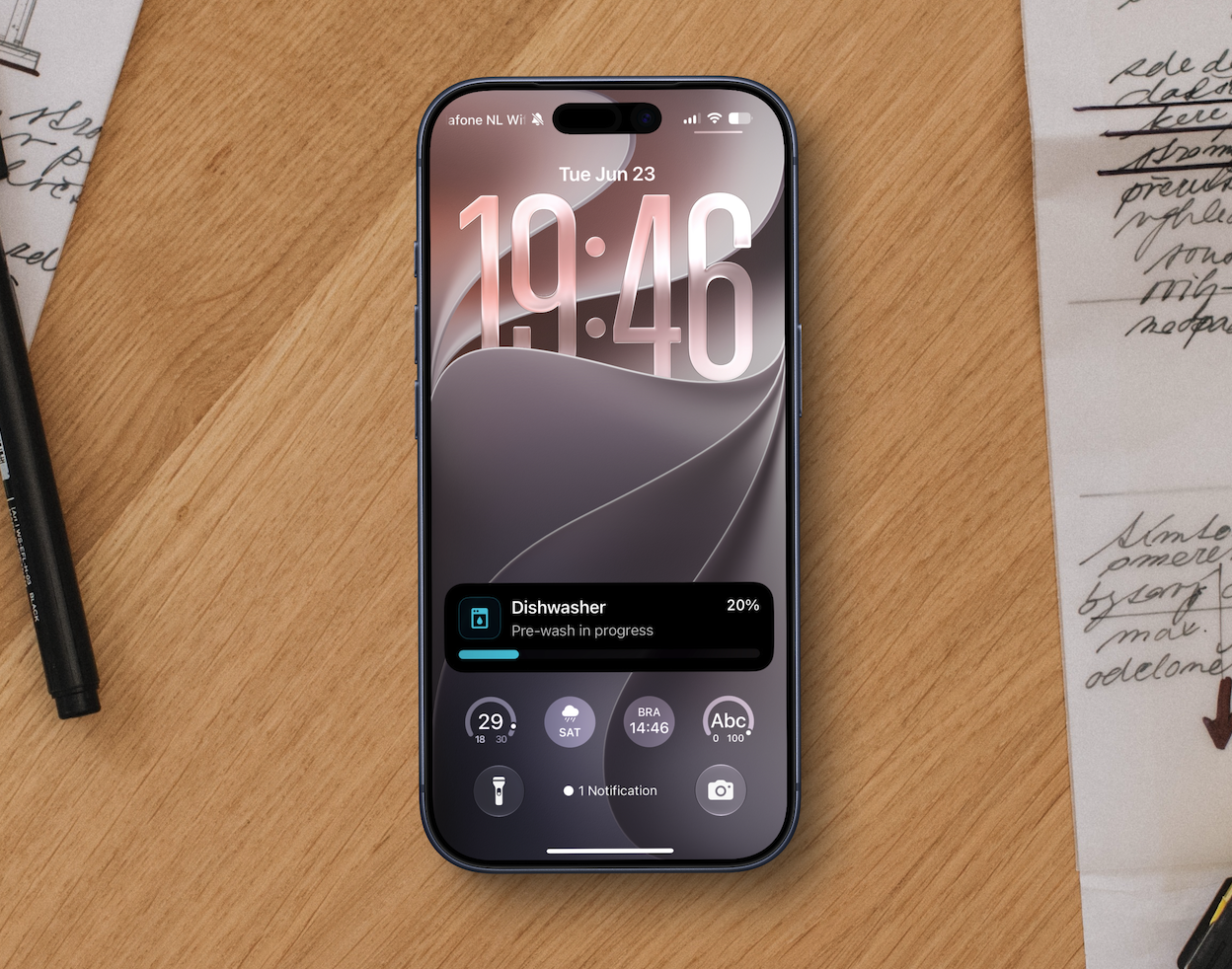
Dishwasher progress
data:
  title: "Dishwasher"
  message: "Pre-wash in progress"
  data:
    tag: dishwasher
    live_update: true
    critical_text: "Pre-wash"
    progress: 20
    progress_max: 100
    notification_icon: mdi:dishwasher
    notification_icon_color: "#26C6DA"
Platform-specific behavior
iOS
Payload anatomy
Every part of a Live Activity banner is driven by one notify.mobile_app_* call. The diagram below maps each element of the Lock Screen banner to the exact payload field that produces it, using the built-in "All Fields" sample.

The payload that reproduces this banner:
action:
  - action: notify.mobile_app_<your_device_id_here>
    data:
      message: "All content state fields active"   # hidden here: chronometer replaces it
      title: "All Fields"                           # header line (top-level field)
      data:
        tag: debug-all                              # identity: the same tag updates in place
        live_update: true                           # routes this notification to a Live Activity
        critical_text: "5 min"                      # hidden here: progress replaces it on the Lock Screen
        progress: 42                                # progress percentage and bar fill
        progress_max: 100                           # denominator (42 / 100 = 42%)
        chronometer: true                           # show the countdown timer instead of the message
        when: 300                                   # timer length, in seconds
        when_relative: true                         # 300 = seconds from now, not a Unix timestamp
        notification_icon: "mdi:home-assistant"     # the icon glyph (Material Design Icons slug)
        notification_icon_color: "#03A9F4"          # icon tint and progress-bar color
Two of the fields in this payload are not visible in this screenshot. chronometer replaces the message line with the live timer, and progress replaces critical_text in the top-right corner. Remove chronometer and the message shows; remove progress and progress_max and critical_text ("5 min") shows instead of "42%". On the Dynamic Island compact view, critical_text always shows.
Opening a page on tap
Tapping a Live Activity opens the companion app on the Home Assistant server that started it, which is handy when you have more than one server configured. To send the tap to a specific page, add a url:
action:
  - action: notify.mobile_app_<your_device_id_here>
    data:
      title: "Washing Machine"
      message: "Cycle complete"
      data:
        tag: washer_cycle
        live_update: true
        url: /lovelace/laundry
- A relative Home Assistant path such as
/lovelace/laundryopens that view in the app's frontend. - A full
https://URL opens in the browser.
url travels with the update it is sent on, so include it on each update where you want a specific destination. An update sent without a url falls back to opening the server's default view.
Custom colors
By default a Live Activity is a black card with light text. Set background_color and text_color to recolor the Lock Screen card. Both accept a hex value (#101820) or a CSS color name, the same format as notification_icon_color:
action:
  - action: notify.mobile_app_<your_device_id_here>
    data:
      title: "Washing Machine"
      message: "Cycle complete"
      data:
        tag: washer_cycle
        live_update: true
        background_color: "#101820"
        text_color: "#FFFFFF"
background_color defaults to black. If you omit text_color, it is chosen automatically to contrast with the background so the text stays legible. These colors apply to the Lock Screen card; the Dynamic Island keeps its system-provided dark style.
To recolor the progress bar on its own, set progress_bar_color (same format), when omitted it uses notification_icon_color.
Dynamic Island
On iPhone models with a Dynamic Island, the Live Activity also appears there in three presentations: compact (the everyday pill), minimal (when another activity shares the island), and expanded (on long-press). The diagram maps each region to the field that fills it.

On iPhone 14 Pro/Pro Max and all iPhone 15 and later models, the Live Activity also appears as a compact island pill at the top of the screen. On older iPhones without a Dynamic Island (notch or Home button), the activity appears on the Lock Screen only. Live Activities are not available on iPad (an Apple limitation).
Settings: While the feature is in beta, go to Settings → Live Activities in the companion app to see whether Live Activities are enabled and to view or end any currently active activities.
- Rate limiting: iOS throttles frequent Live Activity updates and may delay or drop them. Structure automations to fire on state-change events rather than polling timers.
- Push-to-start budget: Separately from update rate limiting, iOS limits how often a new activity can be launched via push. Repeatedly starting and ending activities while testing drains this budget quickly, after which new activities silently fail to start, the automation succeeds, Home Assistant logs nothing, and the device stays silent, which looks exactly like a broken setup but is not. The budget replenishes on its own over time (typically minutes to hours); you cannot force it, and rebooting the device does not help.
- Expiry: Activities expire after up to 8 hours (an Apple system limit). If the app is force-quit and relaunched, it automatically reattaches to any Live Activities that iOS kept alive.
- Privacy: The first time a Live Activity starts, the companion app shows a one-time disclosure noting that Lock Screen content is visible without unlocking the device.
Android
These options require Android 16 or later. The status bar chip appearance may vary by manufacturer.
Always-on display: The Live Update appears pinned at the top of the notification shade, on the Lock Screen, and on the always-on display.
Status bar chip: The notification shows as a chip in the status bar. Use critical_text to display a short label in the chip. If chronometer: true is set, the timer replaces critical_text in the chip. If there is not enough space in the status bar, only the icon is shown.
On Samsung, you may need to enable Live notifications for all apps in developer options for the status bar chip to appear.


Troubleshooting
If the Live Activity or Live Update does not appear:
- Make sure Live Activities are allowed in iOS Settings → Home Assistant, and accept the one-time privacy disclosure shown the first time an activity starts.
- Confirm the device runs iOS 17.2 or later on an iPhone or iPad.
- Make sure your phone's connectivity is stable and Home Assistant can be reached from where you are (home or away), otherwise token exchange will fail and live activity will not start/update.
- If updates stop refreshing, check that your automation isn't updating too frequently, as iOS throttles frequent updates.
- If a Live Activity does not start, send a
clear_notificationcommand for thattagto clear any stale activity, then try again, or start the new activity with a differenttag. - Make sure
titleis set in the payload. Without it, the notification posts as a standard banner instead of a Live Update. - On Samsung devices, enable Live notifications for all apps in developer options for the status bar chip to appear.