Android Home App (launcher)

The Home Assistant Companion app can be set as your device's default home app (launcher). This turns your Android device into a dedicated Home Assistant control panel, perfect for wall-mounted tablets or kiosks.
What is a home app?
A home app (also called a "launcher") is the app that appears when you press the home button. By setting Home Assistant as your home app, your device boots directly into Home Assistant, making it ideal for dedicated smart home control.
Use cases
- Wall-mounted tablets: Create a dedicated control panel for your home.
- Kitchen displays: Quick access to timers, shopping lists, and home controls.
- Bedside tablets: Control lights, alarms, and media from your nightstand.
- Kiosk mode: Set up a device for guests or family members with limited access.
- Digital signage: Display dashboards, cameras, or information screens.
What to expect
When Home Assistant is your default home app:
- No app drawer: You won't see the usual list of installed apps when pressing the home button.
- No direct app launching: You can't start other apps the traditional way. Follow the steps on opening other apps when using Home Assistant as the home app
- Home button: Returns to Home Assistant (or refreshes if already open).
- Back button: When the navigation stack is empty, pressing back will refresh the app instead of doing nothing.
- Boot: The device opens Home Assistant automatically after restarting.
Enabling Home Assistant as the home app
-
Open the Home Assistant app.
-
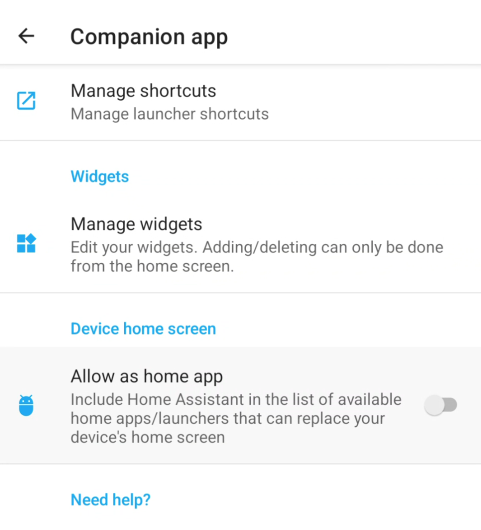
Go to Settings > Companion app.
-
Scroll down to Device home screen.
-
Enable Use as Home app (launcher).
-
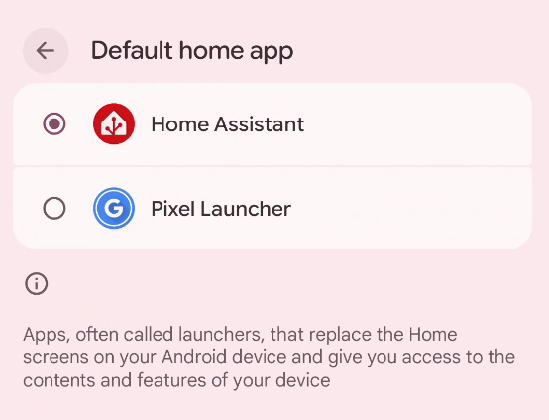
To open the system screen that allows you to pick a home app, select Change home app.
Disabling Home Assistant as the home app
If you want to switch back to your regular home app:
-
Open the Home Assistant app.
-
Go to Settings > Companion app.
-
Scroll down to Device home screen.
-
To open the system screen that allows you to pick a home app other than Home Assistant, select Change home app.
Creating a kiosk mode setup
For the best kiosk or wall tablet experience, consider these additional settings:
Enable local push
Enable local push to take advantage of:
- Unlimited notifications: No daily limits on alerts from your automations
- Unlimited commands: No daily limits on controlling the device (change volume, open apps)
- Faster response: Notifications and commands arrive and run with lower latency
- Works without internet: Keeps working as long as you have a network connection, even when your internet is down
Keep screen on
To prevent the screen from turning off, go to Settings > Companion app and scroll down to Other settings and enable Keep screen on.
Kiosk mode dashboard
Create a streamlined experience by setting up a dedicated dashboard:
- Create a dashboard in Home Assistant with only the controls needed for that device.
- Set it as default for the device user in Settings > Dashboards > select your dashboard > Set as default on this device.
Create a dedicated Home Assistant user for each kiosk device. This allows you to set different default dashboards per device.
Opening other apps when using Home Assistant as the home app
Since Home Assistant doesn't have an app drawer, here are two ways to launch other apps:
Through Android settings
- Swipe down from the top of the screen to open the notification shade.
- Tap the settings gear icon.
- Go to Apps, select the app you want, and tap Open.
From your dashboard
Use notification commands to create buttons that launch apps directly. This is useful for quick access to apps like a camera viewer or music player.