iOS Kiosk mode

Kiosk mode turns an iPhone or iPad into a dedicated Home Assistant display. It is designed for wall-mounted tablets, kitchen displays, bedside panels, and any setup where the device should stay on and show a single dashboard.
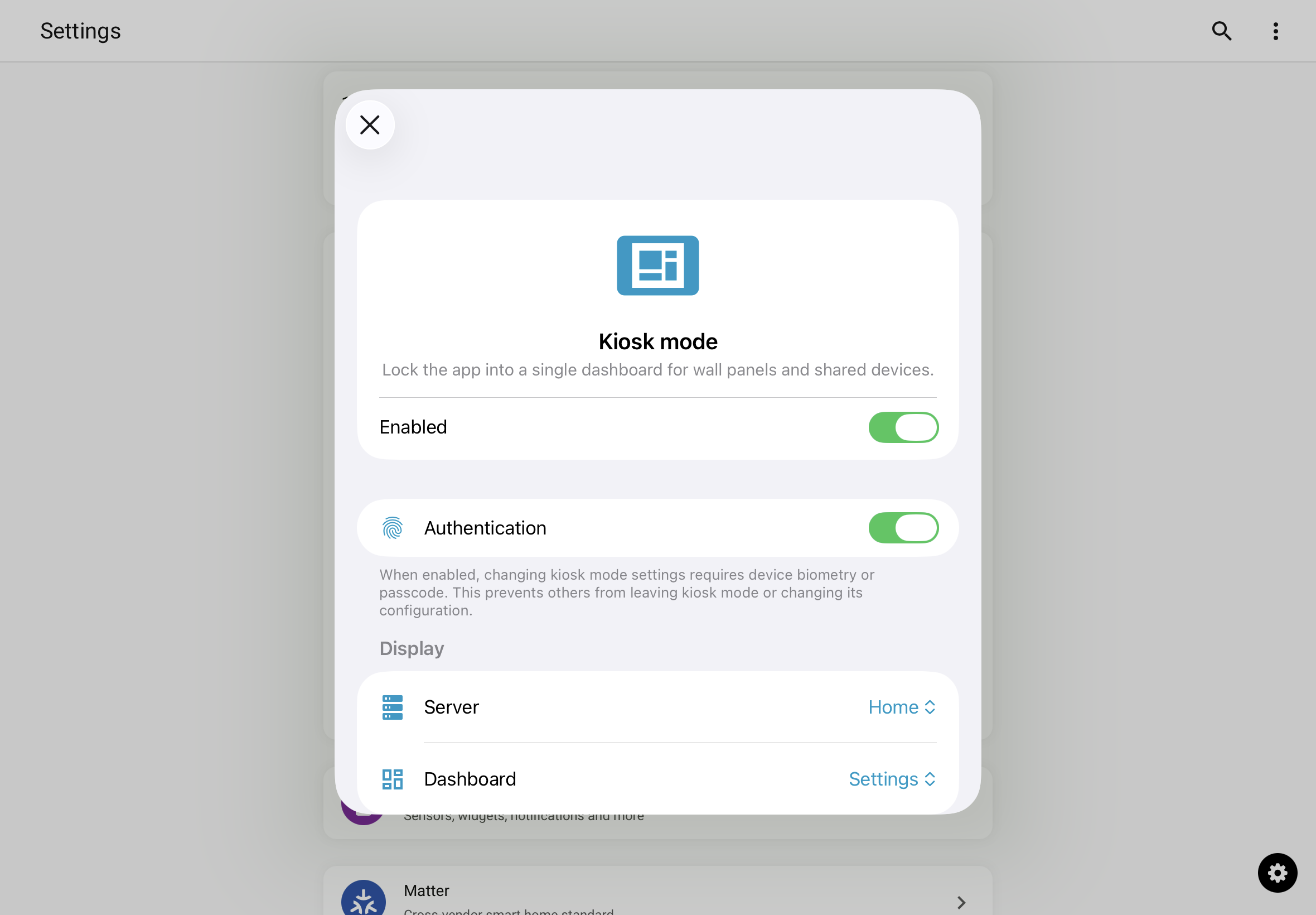
When kiosk mode is on, the app opens a chosen server and dashboard, can hide the Home Assistant sidebar and dashboard controls as well as the iOS status bar, keeps the screen awake, can reload the dashboard on a schedule, and shows a screensaver after a period of inactivity. A small, configurable button provides discreet access back to the kiosk settings, optionally protected by Face ID, Touch ID, or your device passcode.
Kiosk mode is iOS-only. Android users can achieve a similar setup with the Home App (launcher) feature.
Requirements
- An iPhone or iPad with the Home Assistant Companion app installed.
- To hide the sidebar and top bar controls, a version of Home Assistant whose frontend supports kiosk mode.
- Face ID, Touch ID, or a device passcode set up on the device, if you want to require authentication to open the kiosk settings.
Enabling kiosk mode
- Open the Home Assistant app.
- Go to Settings > Companion app > Kiosk mode.
- Turn on Enabled.
Kiosk mode configures what happens inside the Home Assistant app, but it can't prevent someone from leaving the app or turning the device off. For a truly dedicated display, also turn on Guided Access on the device: it locks the device to a single app until you enter a passcode. Triple-click the side or Home button to start Guided Access while the Home Assistant app is open.
Display
The Display section controls what is shown when the app opens in kiosk mode.
- Server: The Home Assistant server to display.
- Dashboard: The dashboard to open. Choose Default to open the server's default dashboard (the one Home Assistant would normally open for you).
The chosen server and dashboard are the ones shown whenever the app opens in kiosk mode.
Authentication
Turn on Authentication to require Face ID, Touch ID, or your device passcode before the kiosk settings can be opened. With this on, the settings are covered by a lock screen until you authenticate, so others cannot change the configuration or leave kiosk mode.
Customization
The Customization section controls how the kiosk behaves while it is running.
- Keep screen on: Prevents the device from auto-locking, so the screen stays on. When off, the device follows its normal Auto-Lock setting from iOS Settings > Display & Brightness > Auto-Lock.
- Hide sidebar and top bar controls: Hides the Home Assistant sidebar and the dashboard's edit, add, and search controls for a cleaner, read-only display. This relies on the Home Assistant frontend, so it requires 2025.2.0+ version of Home Assistant.
- Hide status bar: Hides the iOS status bar (time, battery, Wi-Fi indicator) at the top of the screen.
- Auto reload: Reloads the dashboard automatically on a schedule. Choose Never or an interval from 1 minute to 1 hour.
- Screensaver: Opens the screensaver settings (see Screensaver below).
On iPad, when the app is running in Split View or Slide Over, iOS does not allow apps to hide the status bar. Run Home Assistant full-screen for the most immersive kiosk experience.
Configuration access
Because kiosk mode hides the usual navigation, a small button is shown on top of the dashboard to get back to the kiosk settings.
- Kiosk settings entry position: Choose which corner the button appears in — Top leading, Top trailing, Bottom leading, or Bottom trailing.
Tapping the button opens the kiosk settings directly. If Authentication is on, you must authenticate with Face ID, Touch ID, or your device passcode first. You can also always reach the settings from Settings > Companion app > Kiosk mode.
Screensaver
After a period of inactivity, the screensaver replaces the dashboard with a lower-power display. Touching the screen wakes it back up to the dashboard.
In the Screensaver screen:
- Enabled: Turn the screensaver on or off.
- Mode: Choose what the screensaver shows:
- Clock: A full-screen clock.
- Dim: Keeps the dashboard visible but dimmed.
- Blank: A black screen. The most power-efficient option, and the best choice for OLED displays.
- Time to start: How long the device must be untouched before the screensaver activates, from 30 seconds to 1 hour. Choose Push notification controlled to disable the inactivity timer entirely and only show or hide the screensaver through remote commands.
- Dim level: When Mode is set to Dim, controls how bright the screen stays.
- Wake on camera motion: Use the front camera to detect motion and treat it as activity, like touching the screen. See Wake on camera motion below. Only shown on devices with a front camera.
When Mode is set to Clock, you can also adjust:
- Clock style: Large, Medium, or Small.
- Show date: Show the current date below the time.
- Show seconds: Show seconds on the clock.
Use the Preview button to see the screensaver full-screen with your current settings. Tap anywhere to return to the settings.
Wake on camera motion
When Wake on camera motion is on, the app uses the front camera to detect motion and treats it as activity, like touching the screen:
- The screensaver doesn't start while motion is detected.
- When the screensaver is showing, motion dismisses it immediately and brings the dashboard back.
- The inactivity timer only restarts once motion has stopped, so the screensaver starts after the Camera motion sensor's Clear delay plus the screensaver's Time to start.
Motion detection sensitivity and frame rate are configured in the Camera motion sensor settings, under Settings > Companion app > Sensors. You don't need to enable the sensor itself for this option to work.
With this option on, the camera stays active the whole time kiosk mode runs, and iOS shows the camera indicator (a green dot) in the status bar. The first time the camera is used, iOS asks for camera permission. Like all camera use, this only works while the app is open and in the foreground.
Sensors
Kiosk mode adds sensors so automations can react to the state of the kiosk device. You can enable or disable them in Settings > Companion app > Kiosk mode > Sensors, or with the rest of the app's sensors in Settings > Companion app > Sensors.
For the list of kiosk sensors and what each one reports, see Kiosk sensors.
Remote commands
While kiosk mode is running, you can control it from Home Assistant by sending a notification whose message is a kiosk command. This is useful for automations — for example, showing the screensaver at night, or bringing a camera up on a wall panel when motion is detected.
Kiosk commands are only handled while the Companion app is open and in the foreground — the normal state for a wall-mounted kiosk. They are ignored while the app is in the background or closed.
The available commands are:
message | Action |
|---|---|
kiosk_show_screensaver | Show the screensaver immediately. Requires screensaver enabled in kiosk settings. |
kiosk_hide_screensaver | Hide the screensaver and reset the inactivity timer. |
kiosk_set_screensaver_mode | Set the screensaver mode. Requires mode, one of clock, dim, or blank. |
kiosk_set_screensaver_brightness | Set the screensaver dim level (how bright the screen stays in dim mode). Requires level, a percentage from 0 to 100. |
kiosk_show_camera | Show a full-screen camera stream. Requires an entity_id pointing to a camera. entity. |
kiosk_hide_camera | Hide the camera stream. |
kiosk_set_brightness | Set the screen brightness. Requires level, a percentage from 0 to 100. |
kiosk_set_volume | Set the system volume. Requires volume, a percentage from 0 to 100. |
kiosk_reload | Reload the dashboard. |
kiosk_default | Return to the configured kiosk server and dashboard (or the server default when no dashboard is set). Useful to make sure the kiosk is back on its main dashboard after someone has navigated away. |
automation:
  - alias: Show the front door camera on the kiosk
    trigger:
      ...
    action:
      - action: notify.mobile_app_<your_device_id_here>
        data:
          message: "kiosk_show_camera"
          data:
            entity_id: "camera.front_door"
These commands are only acted on when Accept kiosk remote commands is enabled in the kiosk settings (on by default). Turn it off on any device that should ignore remote kiosk commands. See Notification Commands for the full list of supported commands.
Disabling kiosk mode
- Open the kiosk settings using either method:
- Tap the configuration-access button in the corner you chose.
- Go to Settings > Companion app > Kiosk mode.
- If Authentication is on, authenticate with Face ID, Touch ID, or your device passcode.
- Turn off Enabled.
Troubleshooting
The sidebar or dashboard controls aren't hiding
- Hide sidebar and top bar controls depends on the Home Assistant frontend. Make sure your Home Assistant is 2025.2.0+ to support kiosk mode.
The status bar isn't hiding
- iOS does not allow apps to hide the status bar when running in Split View or Slide Over. Make sure Home Assistant is running full-screen.
- Make sure Hide status bar is on in the Customization section.
The screen still turns off
- Make sure Keep screen on is on. While it is on, kiosk mode overrides the system Auto-Lock setting.
- If the device is plugged in but still sleeping, check for any device management profiles or Screen Time limits that might be forcing the screen off.
I can't find the way back to the settings
- The configuration-access button is shown in the corner selected by Kiosk settings entry position. If the screensaver is showing, tap once to wake the screen first, then tap the button.
- You can always open the settings from Settings > Companion app > Kiosk mode.