Android Media controls

The Android app can show your Home Assistant media_player entities as native media controls in the notification shade, the same controls used by apps like Spotify or YouTube Music. You can control playback without opening the app.
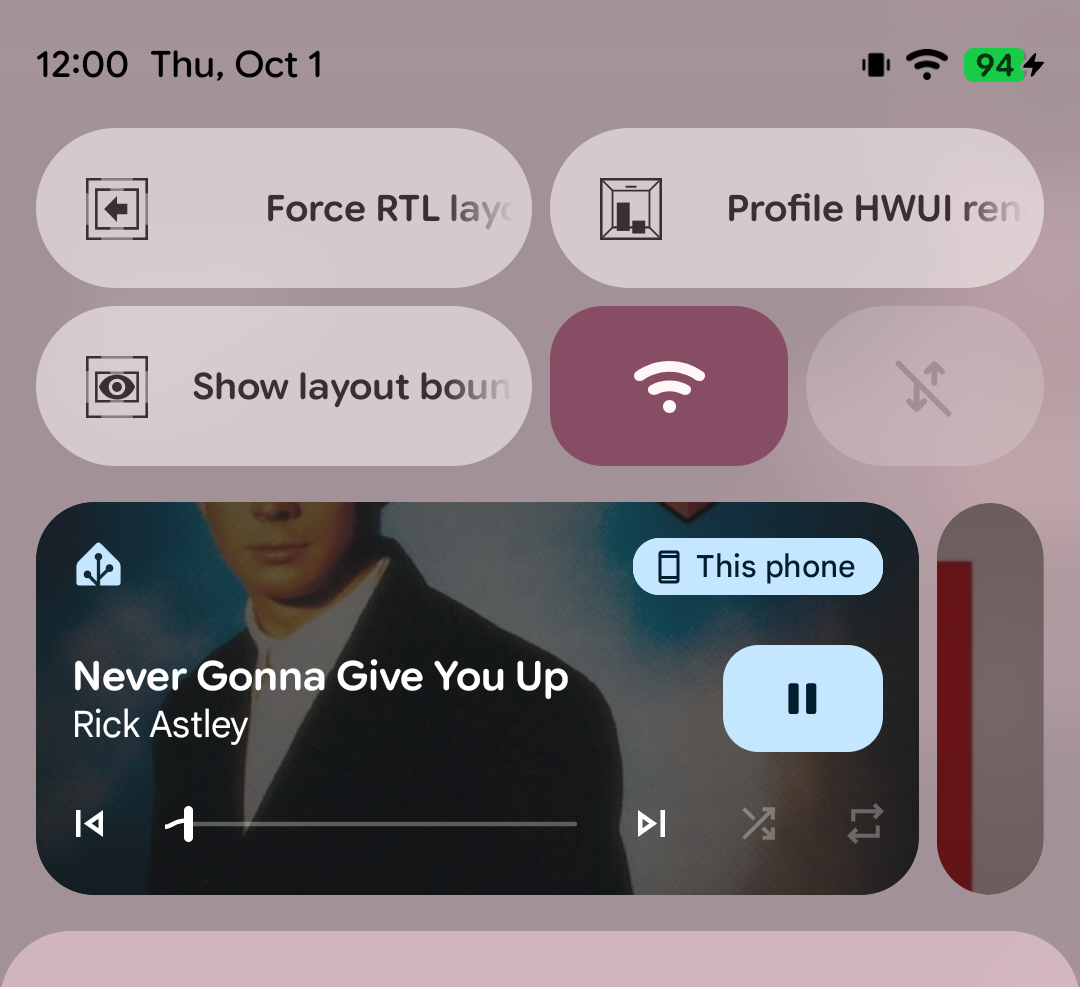
The output indicator in the top right corner of the media control will show This phone, even though the media plays on the media player. You cannot play the media player's media on the device running the app.
Setup
- In the Home Assistant app, go to Settings > Companion app > Media controls.
- If you have multiple servers, select the server of the media player.
- Tap Add media player and select a
media_playerentity. - Repeat step 3 for each media player you want to control.
Changes are saved immediately. Each media player gets its own media control in the notification shade.
To remove a media player, tap the remove button next to it in the list. When no media player is left, the app stops showing media controls.
Controls
The media control shows the title, artist and artwork of the current media, and the playback progress. It offers the following controls, depending on what the media player supports:
- Play and pause
- Previous and next track
- Seek: drag the progress bar to a position in the current media
- Shuffle: turn shuffle on or off
- Repeat: cycle between repeat off, repeat all and repeat one
- Volume: change the volume of the media player with Android's volume controls
- Mute: mute or unmute the media player
Controls the media player does not support are not shown. Tapping the media control opens the media player in the app.
The media controls reflect what Home Assistant reports. If the progress bar or the shuffle and repeat state look wrong, compare with the media player's state in Home Assistant before opening an issue.
When the media controls are shown
The media controls are shown while the media player is playing, paused, buffering or idle. It is hidden while the media player is off, and comes back when it turns on again.